DISPLAY TIPS · SETUP GUIDE
Show PayPal support on stream.
Display supported PayPal donation and incoming payment receipts as alerts in your streaming scene.
A PayPal payment link helps a viewer pay you. The Display Tips overlay provides the on-screen recognition after a supported receipt reaches your connected Gmail inbox. You keep using your payment account; Display Tips does not process, hold or transfer the money.
A payment link is not an overlay link
Share your own appropriate PayPal payment details with viewers. Paste the separate, private Display Tips overlay URL into OBS. Pasting a PayPal payment page into a browser source does not turn that page into a receipt-driven alert.
Connect supported PayPal receipts
- Confirm that the Gmail inbox you plan to connect receives your incoming PayPal payment emails.
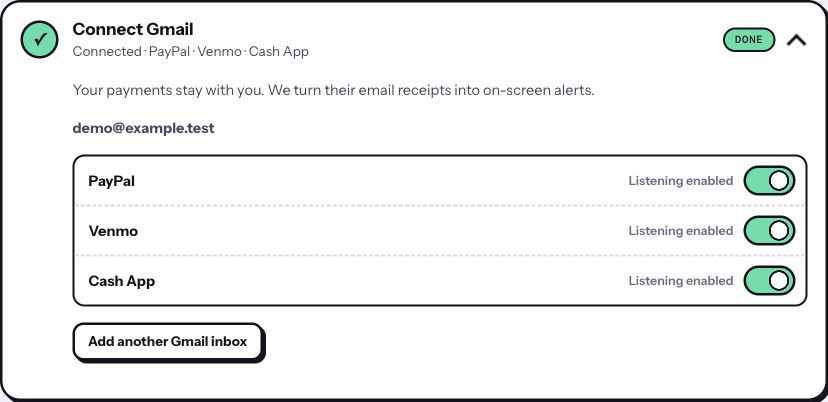
- Create a Display Tips account, choose a plan and open Connect Gmail.
- Choose PayPal for that inbox and complete the separate Google read-only permission step. Account sign-in alone does not connect your inbox.
- Check that PayPal shows Listening enabled. Open Add one overlay link and copy the private URL.
- Follow the OBS browser-source guide, then test the alert while you are off air.
Which PayPal emails can trigger an alert?
Display Tips recognizes supported USD donation receipts and supported incoming merchant payment receipts. Compatibility depends on the actual email format and the information it contains. Do not assume that every PayPal account, payment flow, currency or notification format will trigger an alert.
An outgoing payment confirmation, a payment request, a refund notice or a balance notification is not an incoming tip receipt. Your PayPal account remains the source of truth for whether a payment completed, was refunded or was disputed.
When a PayPal alert does not appear
- Check the receipt inbox: the connected Gmail inbox must receive the official incoming payment email, and PayPal must be enabled for that inbox.
- Check the connection: follow a reconnect notice in the dashboard if Gmail permission needs renewing.
- Separate display from delivery: a successful test tip shows that your overlay works. It does not verify support for a real PayPal receipt format.
- Check when the payment arrived: use a new genuine receipt after enabling listening. Connecting an inbox does not replay its old payment emails.
- Check the scene: if a receipt appears in the dashboard but not in your video, use the OBS troubleshooting steps.
Payment emails may be delayed or omitted. If a new incoming USD receipt is not recognized, contact support for help. Keep your private overlay link and financial details out of public posts.
What viewers see, and what stays private
Alerts can show an abbreviated payer name or handle, amount and message. Review your appearance settings and a test alert before broadcasting. Your private overlay link is a viewing credential: put it in your streaming app, not in chat, your stream description or a public screenshot.
Google grants broad, read-only Gmail access when you connect an inbox. Display Tips checks message details to find supported payment receipts and fetches full content for the payment services you enable. It cannot send, delete or change email. Read the privacy policy before connecting.
Put your tips on screen
Connect supported payment receipts, add your overlay and test your scene.
Start your seven-day trial ↗Card required. $8/month or $60/year after the eligible trial, plus applicable tax. Renews automatically until canceled.