DISPLAY TIPS · SETUP GUIDE
Put Cash App tips on screen.
Show supported incoming Cash App tips as stream alerts through one private browser overlay.
Your viewers can use your existing Cash App payment details. Display Tips turns supported payment confirmation emails into an on-screen alert, so you can acknowledge a tip without switching away from your scene to check your phone. Payments stay in your Cash App account.
Your $cashtag and your alert do different jobs
Your public $cashtag tells a viewer where to send a payment. A $cashtag graphic by itself does not notify OBS when money arrives. Display Tips supplies the alert by reading a supported incoming receipt in Gmail. Keep your public payment details separate from the private URL used to display alerts.
Set up Cash App alerts
- Check that Cash App sends incoming payment confirmations to a Gmail inbox you control. A push notification on your phone is not an email receipt.
- Start your Display Tips trial or subscription, then open Connect Gmail.
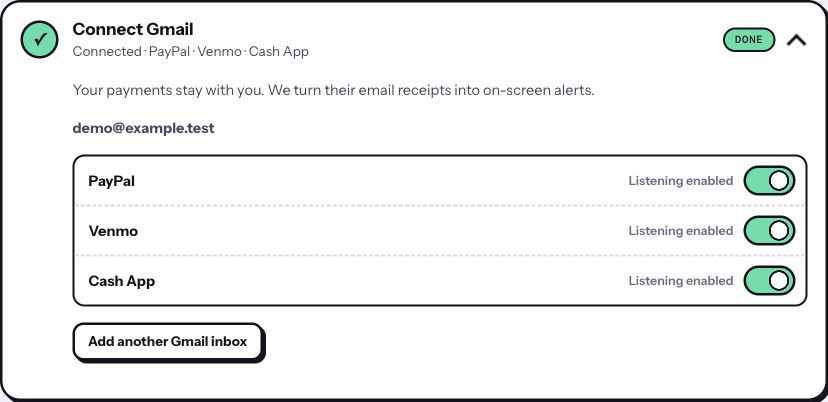
- Select Cash App for the receipt inbox and complete Google’s separate read-only Gmail permission step.
- Confirm Listening enabled for Cash App. Open Add one overlay link and copy your private URL.
- Add it to your streaming scene using the OBS setup guide. Start with width 2000 and height 560, then resize the source to fit.
Test the display, then check a real receipt
Before broadcasting, open Test your alert and send a sample tip. This checks whether the overlay renders in your scene. It does not move money or test Cash App receipt delivery. A new genuine incoming payment, received after Cash App listening is enabled, is needed to check the full receipt-to-overlay path.
Common Cash App alert problems
- The phone shows a payment, but Gmail does not.
- Check which email address receives your Cash App confirmations and whether email notifications are enabled. Display Tips cannot read a phone notification.
- The email is for a request, refund or outgoing payment.
- Those are not supported incoming tip receipts. A request for money is not a completed payment to you.
- The receipt goes to another connected inbox.
- Enable Cash App on the inbox receiving that email. Selecting the service on a different inbox does not move or reroute its receipts.
- The dashboard receives tips but OBS stays blank.
- Check the private source URL, visible scene and source stacking. Follow the OBS troubleshooting checklist and test off air.
Supported receipt formats are required. Email delivery and network delays can affect when an alert appears, and older receipts do not automatically replay on connection. Confirm payment status in Cash App itself.
What viewers see, and what stays private
Alerts can show an abbreviated payer name or handle, amount and message. Review your appearance settings and a test alert before broadcasting. Your private overlay link is a viewing credential: put it in your streaming app, not in chat, your stream description or a public screenshot.
Google grants broad, read-only Gmail access when you connect an inbox. Display Tips checks message details to find supported payment receipts and fetches full content for the payment services you enable. It cannot send, delete or change email. Read the privacy policy before connecting.
Put your tips on screen
Connect supported payment receipts, add your overlay and test your scene.
Start your seven-day trial ↗Card required. $8/month or $60/year after the eligible trial, plus applicable tax. Renews automatically until canceled.