DISPLAY TIPS · SETUP GUIDE
Add tip alerts to OBS Studio.
Add one Display Tips browser source to your OBS scene, then check the overlay before your next stream.
This guide covers the overlay display in OBS Studio. To trigger real tips, first connect the Gmail inbox receiving your supported Venmo, Cash App or PayPal receipts in Display Tips. You need an active trial or subscription and internet access on the computer running OBS.
1. Copy your private overlay link
Sign in to your Display Tips dashboard. Finish the subscription and Gmail connection steps, then open Add one overlay link and choose Copy link.
Keep that URL private. Anyone holding it can view its alerts. When sharing a screenshot of your OBS properties, cover the URL field first. Your existing overlay URL stays the same when you sign in again; replacing it in the dashboard requires updating your source.
2. Create a browser source in OBS
- Open the scene that should show your tips.
- In Sources, choose +, then Browser. Name the source something recognizable, such as Display Tips.
- Leave Local file off. Paste your private overlay URL into the URL field.
- Set Width to 2000 and Height to 560.
- Leave Shutdown source when not visible and Refresh browser source when scene becomes active off to avoid unnecessary unloads or reloads.
- Save the properties. Position and resize the source within your scene, and place it above sources that would cover it.
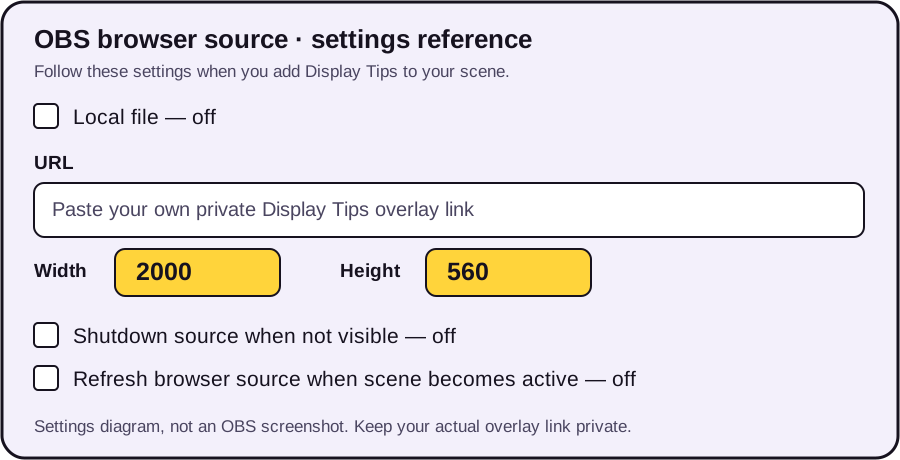
| Setting | Use |
|---|---|
| Local file | Off |
| URL | Your private Display Tips overlay link |
| Width × height | 2000 × 560 |
| Background | Transparent; no extra background graphic needed |
| Shutdown source when not visible | Off |
| Refresh browser source when scene becomes active | Off |
OBS documents the meaning of these settings in its Browser Source reference. Its alert-overlay tutorial explains the scene and source workflow.
3. Test while you are off air
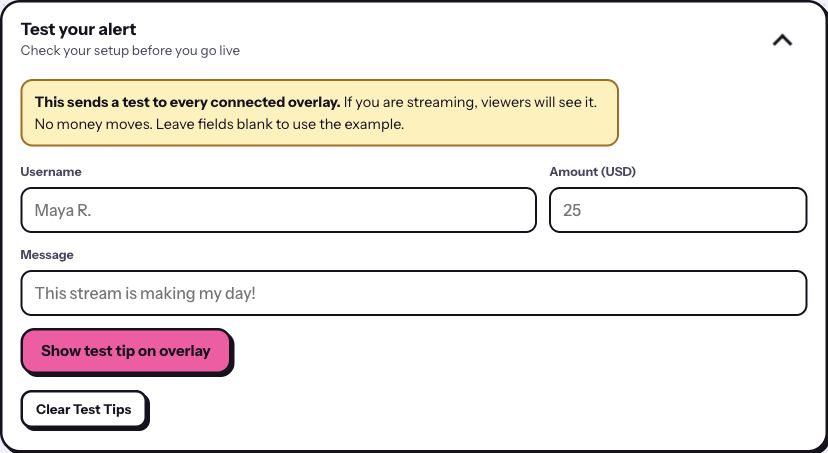
The test sends to every connected overlay. If you are already streaming, your viewers can see it. Test in a scene or recording before going live, and make sure any other broadcast using this overlay is also off air.
- Open Test your alert in the Display Tips dashboard.
- Enter a sample name, USD amount and message, or leave the fields blank to use the example.
- Choose Show test tip on overlay and watch the OBS preview. Check that the name, amount and message fit within the frame.
- If you enable condensed cards, check that their placement also fits. Choose Clear Test Tips when finished.
A test tip verifies the display path and moves no money. To check payment-email recognition, confirm a new genuine incoming payment and supported receipt after enabling the service. A test alert alone does not prove that Gmail delivery or a particular receipt format works.
4. Fix missing or clipped alerts
- The source is blank until a tip arrives.
- An idle overlay can be transparent. Send an off-air test before treating the empty source as an error.
- The test appears in the dashboard but not in OBS.
- Check that the source is visible in the active scene and is not covered by another source. Recopy the private overlay URL if it is wrong. If the dashboard shows no overlay connected, check the OBS computer’s network connection.
- The alert is cropped or too large.
- Check the 2000 × 560 source dimensions first. Remove unintended source cropping, then resize and position the source in the scene. Record a test to inspect the full and condensed layouts.
- The alert works in one scene only.
- Make sure the other scene contains the intended overlay source. Keep shutdown and scene-refresh options off. Avoid displaying duplicate copies in the same scene.
- Tests work, but a real payment does not appear.
- Check the correct Gmail inbox and enabled service. The official incoming receipt must arrive after listening is enabled and match a supported format. Use the payment-specific guide above to separate receipt problems from scene problems.
If you still need help, contact support with your streaming app and a description of what works. Do not publish the private source URL. Payment email delivery can be delayed or missing, and the payment provider remains your transaction record.
Put your tips on screen
Connect supported payment receipts, add your overlay and test your scene.
Start your seven-day trial ↗Card required. $8/month or $60/year after the eligible trial, plus applicable tax. Renews automatically until canceled.